
WHY?
Troubleshooting often requires digging deep into packet data. The traditional method of capturing packets to a file and loading them to wireshark works but isn't real time, and can be slow. Mikrotik offers a built-in solution that allows us to stream pcap data directly to wireshark to streamline the process. If you've tried this before, you may have used a display filter and noticed that this displays headers from the router to your computer, which isn't very helpful, especially when you're looking for specific protocols or packet flags.
HOW?
Mikrotik's Streaming Capture feature uses a protocol called TZSP, which Wireguard is able to properly read with the assistance of a plugin called udpdump (most of the time this is installed when you install wireshark). with Basic configuration, udpdump and wireshark read past the headers and displays the actual packet data mikrotik is streaming, let's take a look:
The Nuts and Bolts
Installing udpdump
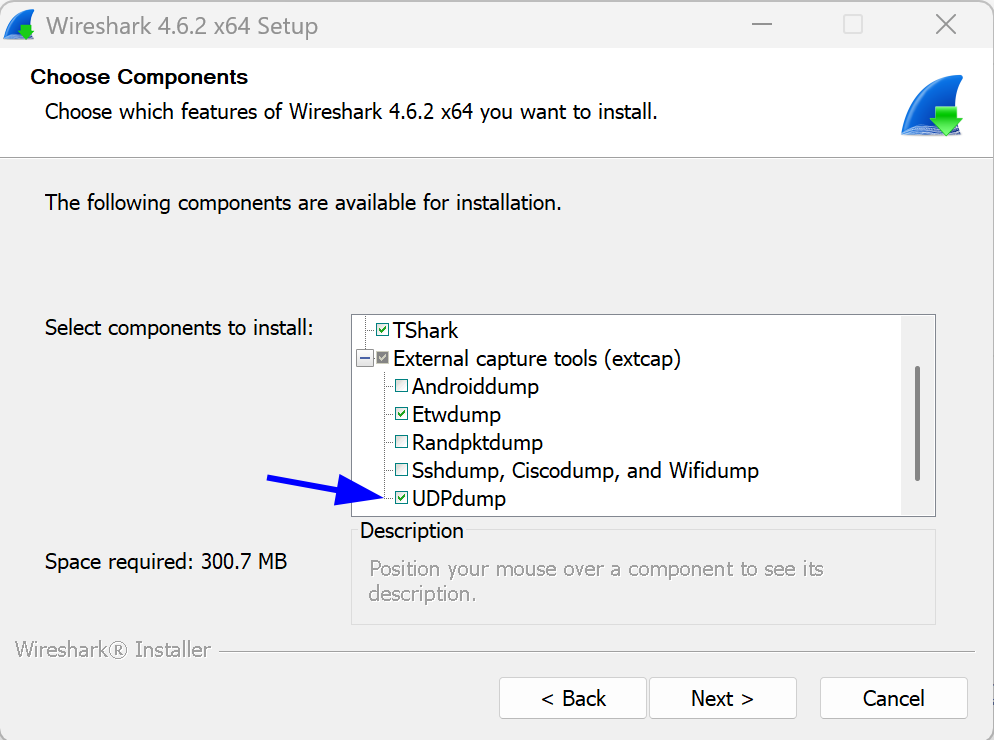
By default, Wireshark does not install udpdump. However, it's part of the wireshark distribution and can be installed by re-running the installer (click no when asked about to uninstall wireshark) and selecting the udpdump option on the components page.
Setting up the UDPDump Capture Interface
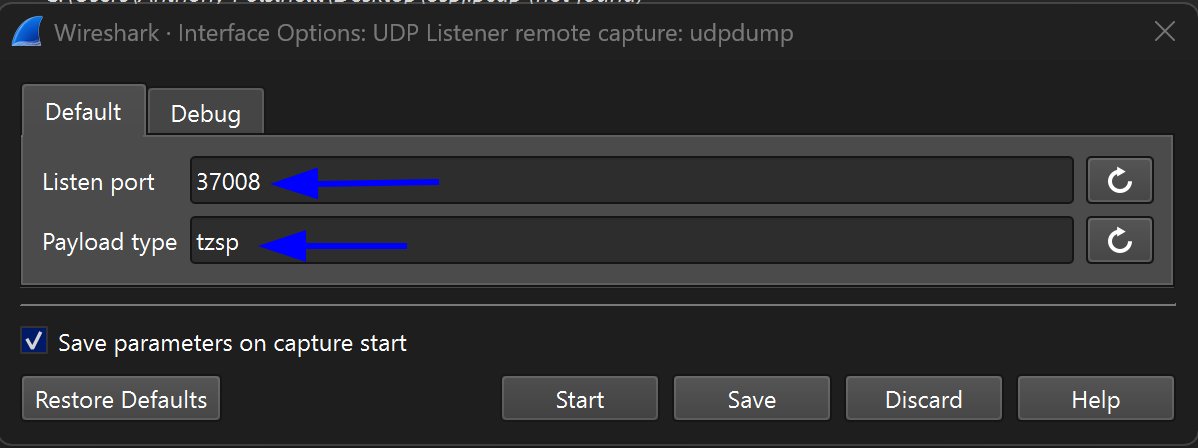
Next we can launch wireshark and find our new UDPDump interface. If we click the gear next to it, we can configure the interface to accept and parse the TZSP protocol.
Though the port is arbitrary, 37008 is the default port for TZSP streaming, so we will go ahead and change that from 5555 to 37008.
we also need to change payload type to tzsp so the packets are appropriately parsed.
That's all that needs to be configured on the wireshark end, click start to start listening on the UDP streaming interface and head over to the mikrotik (or other device supporting TZSP) device to start packet streaming.
Streaming Packets
Streaming packets is simple and can be done with the following command:
# Don't forget to replace the IP address with your computers IP address
/tool sniffer start streaming-enabled=yes streaming-server=192.168.81.252
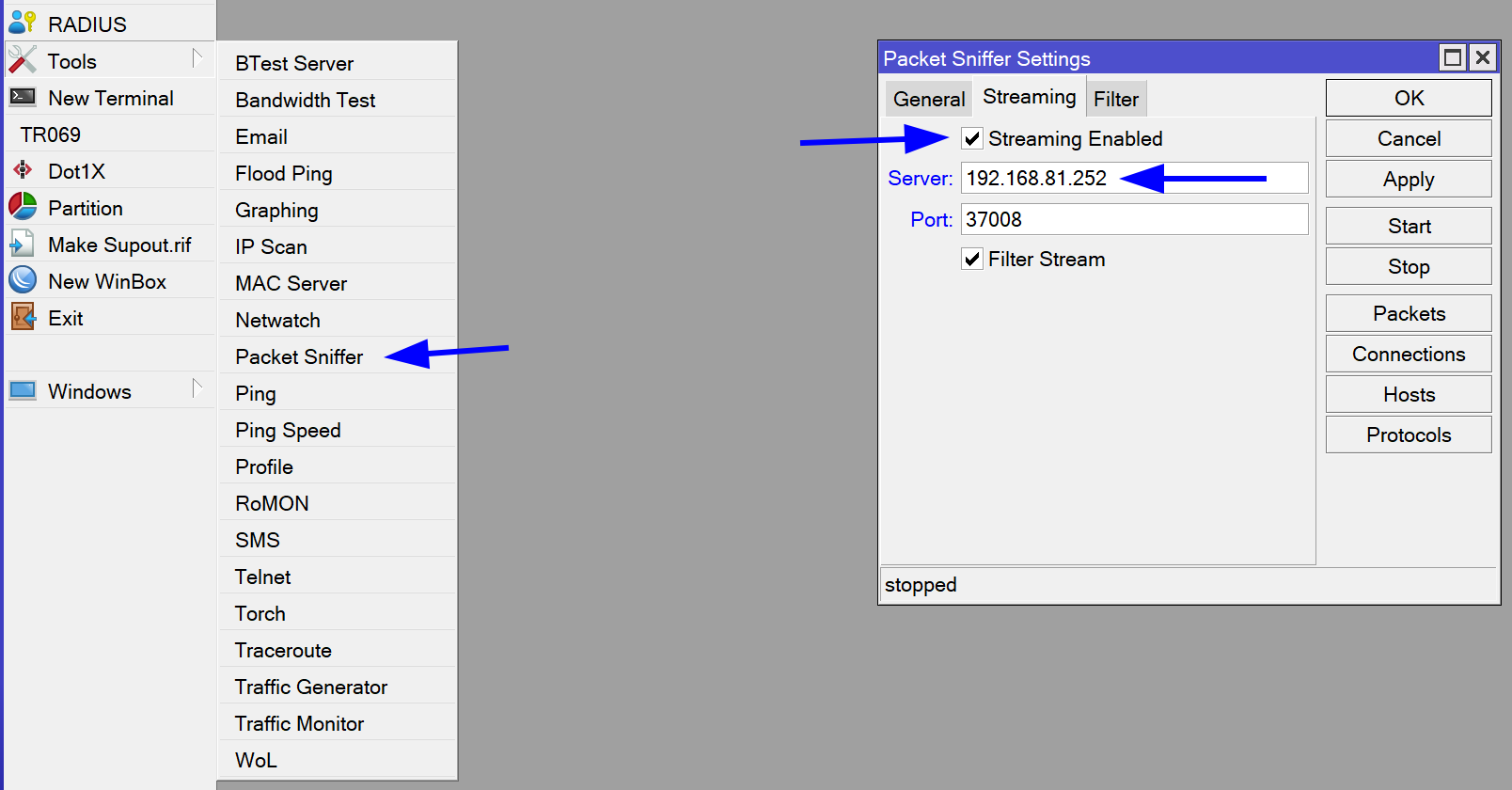
or via winbox by going to the tools menu > packet sniffer On the streaming tab, check the checkbox for enable streaming, and enter the IP address of your computer in the server field.
NOTE: Unlike many interfaces in winbox, these settings are NOT applied when clicking start, so you must first click apply, then start.
The Result
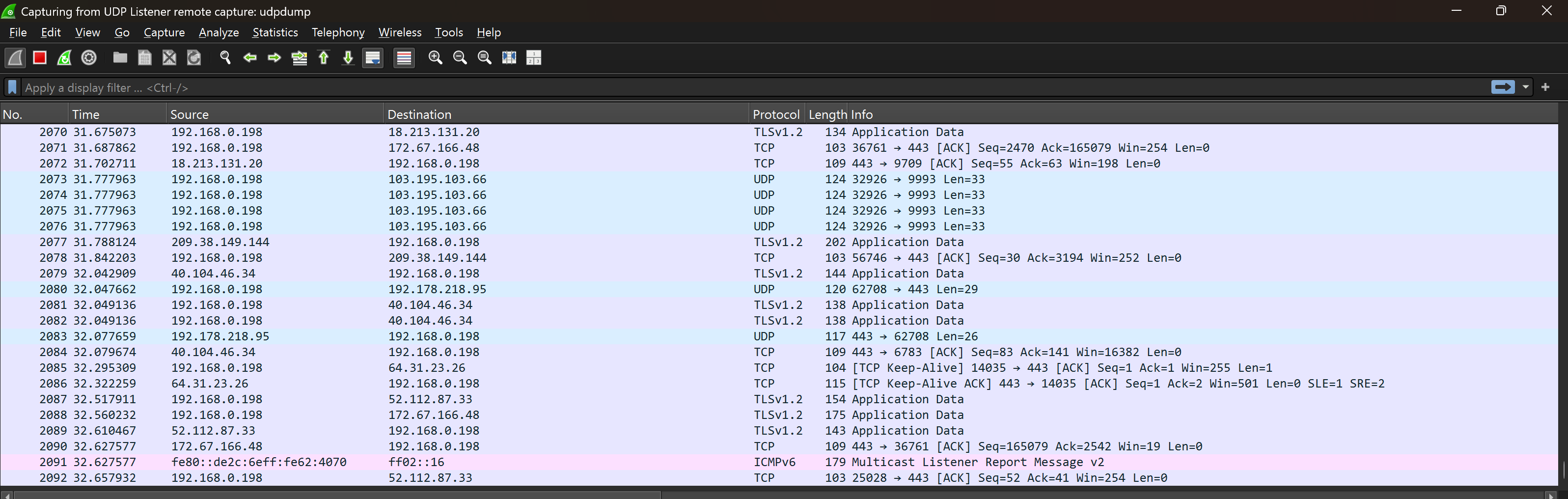
As seen above, we see real packets in wireshark, not just the headers between the router and our computer.
CONCLUSION
Streaming packets to wireshark is an extremely powerful option built into mikrotik to allow for deep analysis of real-time data with minimal extra steps. And greatly reduces the effort required to troubleshoot.